|
Home > Welcome > AI-Based Coaching > Training Plans
Training Plans
To view your Training Plan make the [Reports]->[Training Plan] main menu selections.
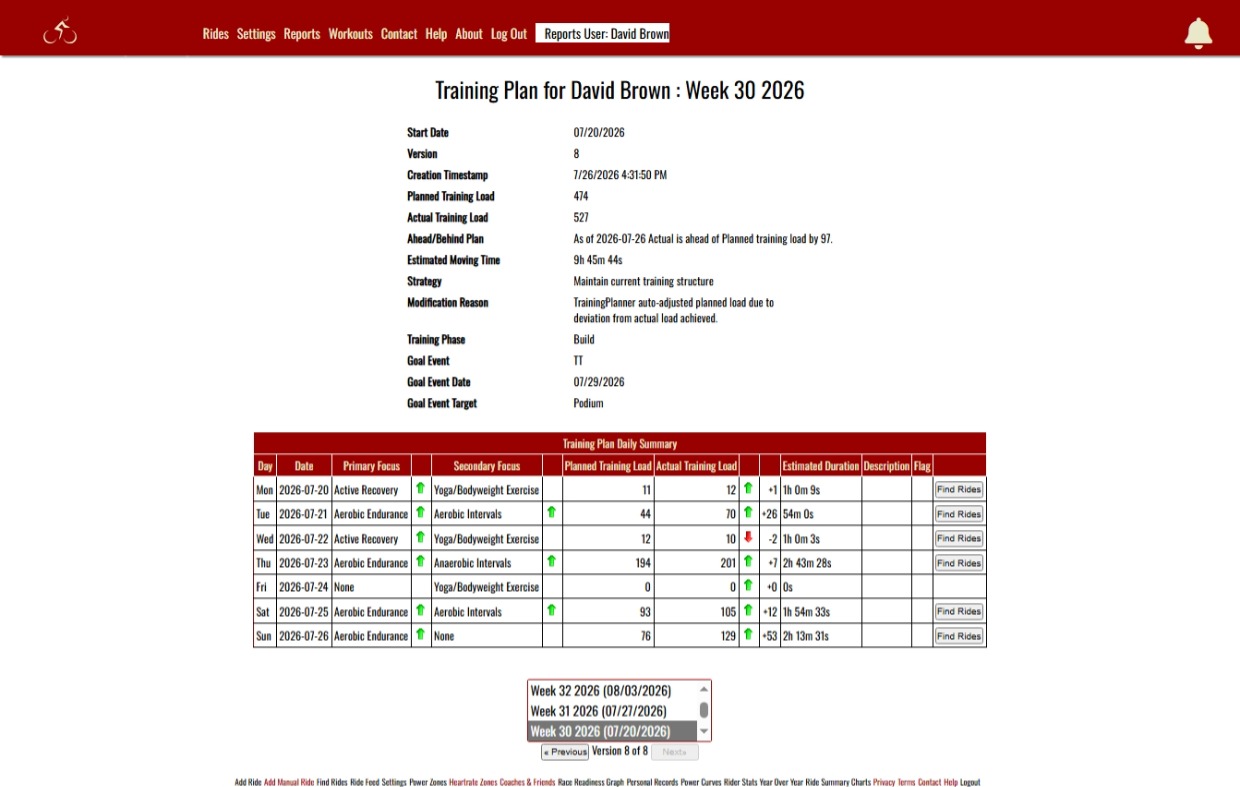
Structured, Adaptive, and Version‑Controlled Training Plans in KOMInformatics provide athletes with a clear weekly roadmap built from their Training Phase, goal event, and weekly blueprint values in the Athlete Training Context (ATC). Each plan establishes a weekly training load target and distributes it across the week using daily focuses, estimated durations, and planned training load — exactly the elements shown in the Training Plan Display.
A defining feature of the system is versioning. New versions are created whenever required ATC fields change — such as Training Phase, goal event, available hours, or daily focus assignments — because these inputs directly shape the weekly target and daily prescriptions. When any of these fields shift, KOMInformatics recalculates the plan and records a new version so athletes can see precisely why the week changed.
Plans also evolve throughout the week. As rides are uploaded, KOMInformatics compares planned vs. actual training load and automatically adjusts the remaining days to keep the week aligned with the target. These adjustments generate new versions with clear modification reasons, such as auto‑adjusted planned load due to deviation from actual load achieved.
The system also handles missed days or rides that fall significantly short of their planned training load. When this happens, KOMInformatics does not automatically reduce the weekly target. Instead, the Training Plan Display raises a flag indicating that the athlete should consult CG to determine whether a reduction in weekly load is appropriate. If CG determines that a reduction is warranted — for example, due to fatigue, recovery deficit, or external constraints — CG can generate a weekly load override, producing a new version that reflects the updated target.
In this blueprint model, the Training Plan functions as an adaptive scaffold—its form can shift in response to the events of the week, but its purpose remains stable: to define the load paths, progression logic, and structural constraints of the training cycle. The workouts act as the structural elements that occupy that scaffold: the walls, beams, and roof segments that give the plan its realized shape. Because these elements must reflect the athlete’s current state and the most recent contextual signals, the best practice in KOMInformatics is to prescribe workouts on the day they are executed. Each workout is "installed" precisely when the surrounding scaffold is ready to support it, ensuring that the structure is both coherent and context‑aware.
Beyond the scaffold and its structural elements, CG provides a flexible construction workflow by generating adaptive workouts on demand and importing them directly into the KOMInformatics Workout Builder, where the user can export them in several popular formats. For safety and consistency, we recommend executing these workouts indoors, where the prescribed intervals can be followed precisely. Alternatively, the user can take the Interval Advisor Recommendation underlying an interval workout and apply it to an outdoor route of their own choosing, effectively shaping the terrain to the structural intent of the workout while preserving the logic of the scaffold.
If you've missed a ride, or under-performed the planned load of the ride by a considerable percentage a flag will appear in the flag column for the day. This indicates you should consult with Coach CG to determine whether a reduction in Training Load is warranted. For most situations, trying to make up for lost days is not advisable.
The [Find Rides] button on the right hand side of the Daily Summary enables users to find rides that closely match the training load, and focus areas of the day. This serves as reminder to the user with respect to how they have solved routing problems to fullfill certain types of workouts in the past. The dropdown select list enables viewing plans that have occured in the past. The [Previous] and [Next] button change the version of the current plan, providing an audit trail so you can see how your week evolved.
See also
| 


